In this article
Before paying for a new graphics card, establish two things: does it address your needs, and can your PC accommodate it properly? A card that looks attractive on paper is not necessarily a worthwhile upgrade for your system. Start with your games and display, then examine power, dimensions and connections. BGM’s PC Builder can help you prepare these checks without replacing the necessary manuals and measurements.
Define the result you want
Record your current card, important games or applications, monitor resolution and intended improvement: smoother gameplay, better graphics, video work or another specific need. Add a total budget, not just the card’s price.
The processor and graphics card work together. A new card alone therefore cannot guarantee the hoped-for result in every game. Resolution, settings and the game affect the balance, as Corsair explains in its CPU and GPU discussion. CPU means the main processor; GPU means the graphics processor.
To compare candidates, look for independent tests in your games at the intended resolution. Compare matching settings and check whether the results use upscaling or frame generation. Do not mix those figures with rendering without those features. Video memory, or VRAM, matters, but its capacity in gigabytes alone is not a performance ranking. No numerical improvement is promised here: relevant measurements of the compared models are needed.
Identify the components you already have
Gather the exact processor, motherboard, case and power supply models. For the power supply, read the model and wattage from its label if accessible; do not rely on “600 W PC” in an old advertisement.
This article concerns a replaceable card in a desktop PC. For a laptop or proprietary compact PC, first confirm that this kind of replacement is possible. A component missing from a catalogue or configurator is not evidence of incompatibility.
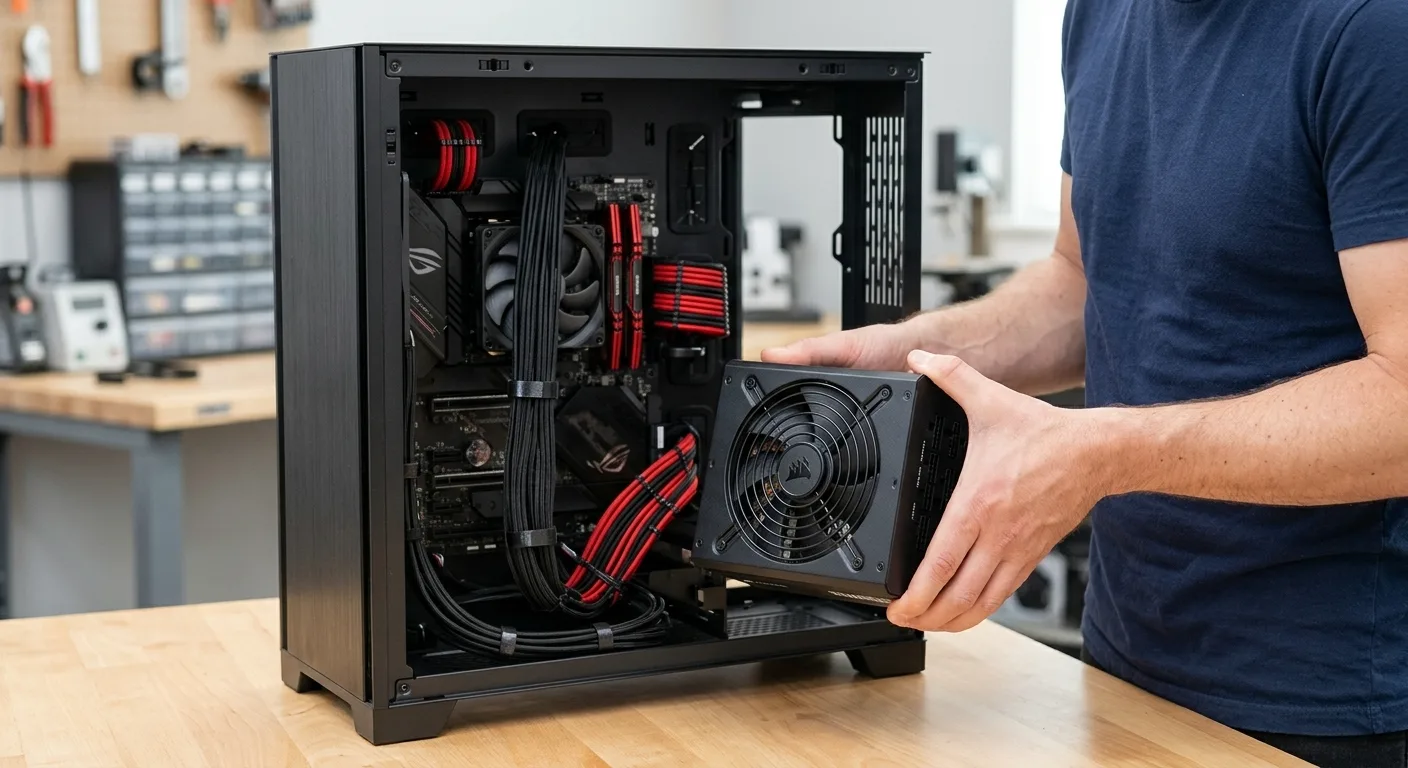
Check power supply and cables together
On the exact candidate model’s specification page, find the recommended power supply capacity and required connectors. The card’s own power consumption is not the whole PC’s consumption. Review the recommendation alongside your complete system and the power supply manufacturer’s instructions.
Then check connector type, quantity and required cable arrangement. Two cards carrying the same GPU name may be different versions. NVIDIA’s upgrade preparation guide illustrates these checks for its RTX 4060 family; its examples are not universal requirements for every card.
Consult Corsair’s PSU cable compatibility chart if your power supply is from that brand; otherwise find the relevant manufacturer’s equivalent documentation. If capacity or cabling remains uncertain, obtain confirmation before paying. Do not add an unapproved adapter to bypass a limitation.
Measure real clearance and check the motherboard
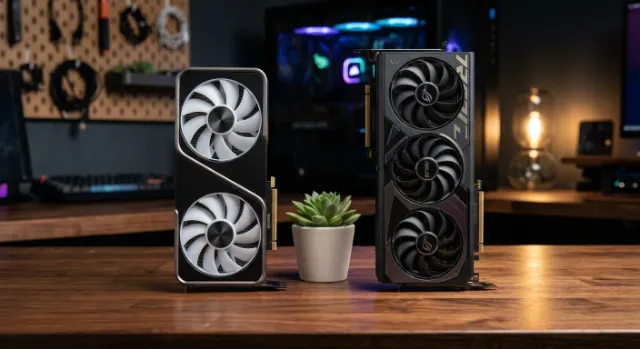
Compare the exact card version’s dimensions with the space available:
- Length up to fans, a front radiator or drive mounts.
- Thickness and the number of expansion slots occupied.
- Height and power-connector clearance before the side panel.
- Access to other cards and airflow around the graphics card.
A case’s advertised maximum card length may depend on what is installed inside it. Do not treat it as a measurement of your current build. The NVIDIA guide above also highlights dimensions and occupied slots.
Use the motherboard manual to identify the intended graphics slot and check the selected card’s requirements. For an older or proprietary PC, confirm any machine-specific restrictions. A connector that looks right is not complete validation.
Include your display and applications
Check the card’s video outputs and the monitor’s inputs for your intended resolution and refresh rate. If an adapter is necessary, explicitly verify its capabilities; its shape alone does not establish them. Include any additional cost in the budget.
For professional software, consult the publisher’s requirements and any supported-hardware lists. Also verify that an official driver exists for your operating system. A card suited to your games does not automatically meet every creative or computing requirement.
Use BGM’s PC Builder to prepare your checks
Open the BGM Hardware PC Builder. The page offers component selection and a Compatibility section for reviewing how parts fit together. Use it to assemble a configuration you can compare with your PC and the intended card.
- Select your exact components where listed, especially the processor, motherboard, power supply and case.
- Add the candidate graphics card and review the available specifications and displayed compatibility indications.
- Record any flagged points and cross-check them against official specifications, the cables actually present and measurements of your case.
If a component is missing, do not substitute an approximate model and treat your PC as validated. The configurator cannot see your physical installation or the condition of your power supply. A favourable indication is not a measurement of game performance either. It helps prepare the decision; dimensions, connections and special requirements still need confirmation.
Decide using the complete cost
Consider a hypothetical example: one person identifies a card suited to their games with confirmed clearance and power support. They can continue comparing models. Another also needs a new power supply and case: the card’s advertised price no longer represents the real budget. A less demanding card or postponing the purchase may become more appropriate.
Before paying, answer four questions: what need are you addressing, what measurements support the choice, what confirms fit and power compatibility, and what does the complete upgrade cost? If an answer is missing, the next step is a targeted check, not necessarily a purchase.