In this article
The best graphics card for you is not necessarily the fastest: it is the one that meets your gaming, display and application needs within a budget covering the complete upgrade. To choose without getting lost in model names, set a clear target, compare performance under matching conditions, then check compatibility. The NVIDIA and AMD examples below explain the criteria rather than declare one universal winner.
Start with your display and workload
Before browsing cards, write down your resolution, important games or applications and desired outcome. Do you mainly want more detail, smoother movement or a work tool? Include your current card’s model so you can judge whether the improvement justifies the cost.
- At 1080p, look for tests of your games at that resolution. For high frame-rate targets, also check the test processor: the whole PC needs to keep up.
- At 1440p, compare cards in that mode rather than relying on a 1080p ranking. Decide whether you accept lower settings or image reconstruction.
- At 4K, find results at the quality you actually want. An average without demanding effects does not answer a request for maximum ray tracing.
- For creative work, start with application requirements: accelerated features, memory needs, video formats and supported hardware.
Monitor refresh rate, measured in hertz, and a game’s frame rate, measured in frames per second or FPS, are different measurements. A fast display does not make the PC calculate more frames. Buying a faster card does not automatically change the display’s capabilities either.
Compare results without mixing methods
A useful comparison keeps resolution, game and settings the same. Check the processor, game version and drivers too. A difference between tests on different computers is not necessarily a difference attributable only to the cards.
Separate two kinds of rendering. Rasterization is the conventional way of rendering scenes; ray tracing adds light-path calculations for particular effects. Look for results matching the effects you plan to enable. A feature’s presence on a specification sheet does not measure its speed in your game.
Look beyond the average to consistency. The “1% low” describes the slower portion of a sequence according to the reviewer’s method; it is not a guaranteed absolute minimum. A video or frame-time chart can help explain stutters hidden by an average when choosing between two models.
The charts in this article compare manufacturer specifications only. They are neither FPS measurements nor tests conducted by BGM. They cannot rank card performance on their own.
NVIDIA or AMD: check the features you will use
NVIDIA offers DLSS and AMD offers FSR. These suites contain several features with different support conditions. Consult NVIDIA’s technical DLSS explanation and AMD’s FSR technologies page to check the relevant card, feature and game.
Upscaling produces an output image from a lower-resolution internal render. Frame generation adds frames between those rendered by the game. These processes are not interchangeable: compare native rendering separately, then assisted modes with their image quality and responsiveness.
A large FPS number with frame generation is not automatically equivalent to the same number without it. Before paying for a technology, confirm it exists in your games and works on the selected card. A generic “DLSS” or “FSR” label does not guarantee every feature of every version.
For editing, streaming, 3D or local AI, check application requirements and the acceleration path actually supported. Do not choose a brand solely because it wins a gaming test unrelated to your work.
Video memory matters, but is not a ranking
Video memory, or VRAM, stores resources used by the card, including textures and working data. Compare capacity with observed requirements in your games and projects at your settings. Avoid rules claiming a particular capacity always suffices for a resolution.
Official specifications list 12 GB of GDDR7 for the RTX 5070, 16 GB of GDDR7 for the RTX 5070 Ti, and 16 GB of GDDR6 for both the RX 9070 and RX 9070 XT. Sources: NVIDIA RTX 5070 and 5070 Ti, AMD RX 9070 and AMD RX 9070 XT.
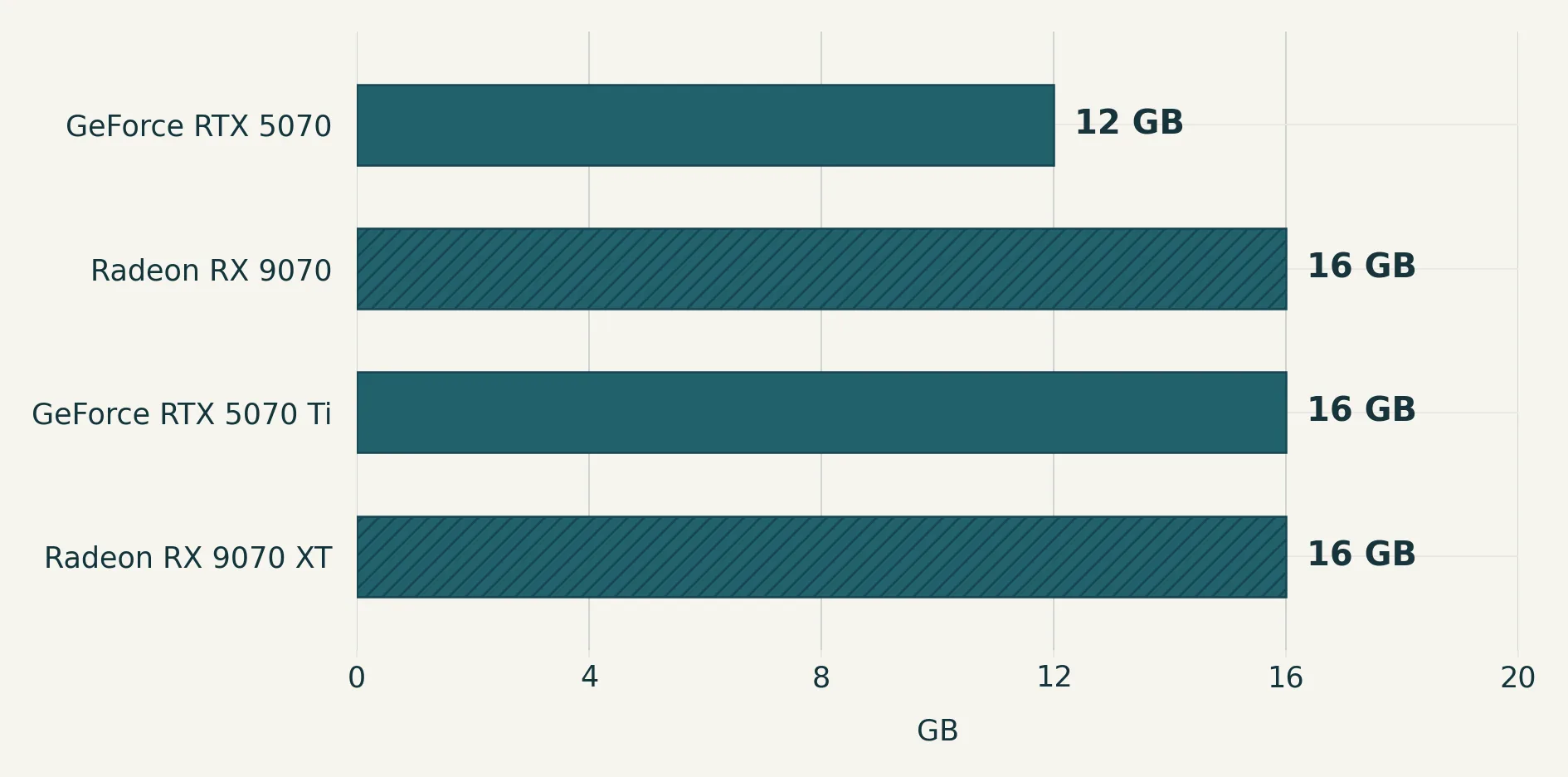
The axis uses GB, meaning gigabytes. This chart shows capacity, not memory speed. A 16 GB card is therefore not automatically faster than a 12 GB card, and GDDR7 versus GDDR6 alone cannot decide between GPUs. Architecture and application behaviour still matter.
These four models are neither an exhaustive list nor a statement of equal pricing. Use them as a reading example: if a project needs more memory than a candidate has, exclude that candidate; if several meet the need, compare their results and actual cost next.
Board power and power supply capacity are different
The second chart shows each manufacturer’s published card-power specification: TGP for NVIDIA and TBP for AMD. These are their specification categories, not consumption measured in the same game. They are planning references, not an efficiency ranking.
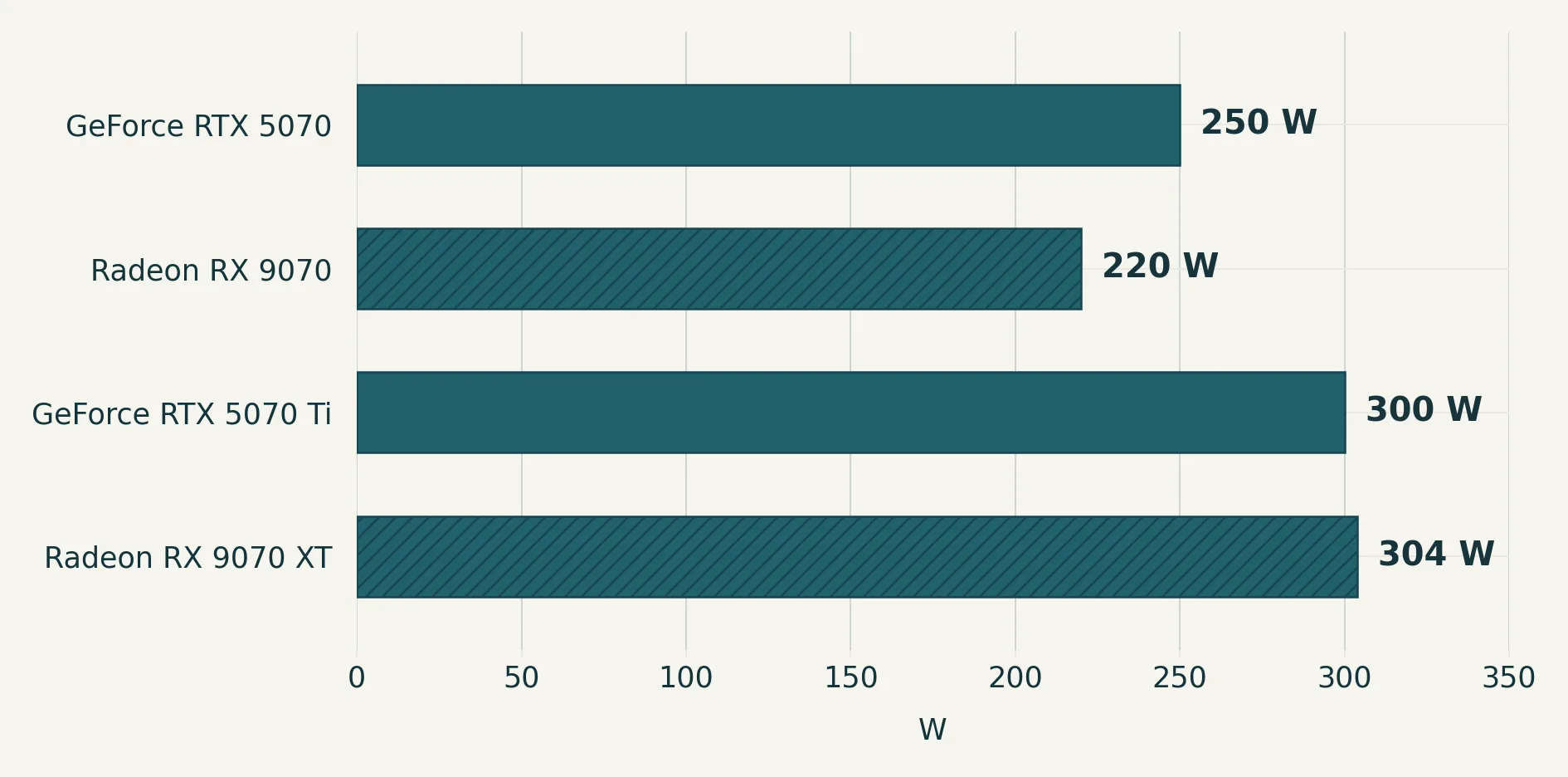
NVIDIA lists 250 W for the RTX 5070 and 300 W for the RTX 5070 Ti, with required system power supplies of 650 W and 750 W. AMD lists 220 W for the RX 9070 and 304 W for the RX 9070 XT, with minimum PSU recommendations of 650 W and 750 W. These figures come from the official specification pages linked above, checked on 7 November 2026.
Do not select a power supply from a bar’s length alone. System recommendations depend on configuration assumptions; NVIDIA identifies its reference processor, for example. Check the complete PC, the instructions for the exact card being sold and its required connectors. Partner versions may differ from the reference design.
A lower published power figure does not prove better efficiency: comparable measurements of work done and energy used are needed. Likewise, higher MHz does not rank different architectures, and a lower temperature does not establish better cooling without noise, ambient temperature and workload information. No clock or temperature chart is used here as a substitute for testing.
Check the build with BGM’s PC Builder
Measure clearance for the exact card version: length, thickness, height and power-cable space. Account for installed fans and radiators. Also check the intended motherboard slot in its manual, video outputs and the mode supported by your display and cable.
Open the BGM Hardware PC Builder, which offers component selection and a Compatibility section. Choose exact models where available, add the candidates and review the specifications and indications shown.
This helps organise the checks; it does not replace physical measurements, know your PSU’s condition or predict FPS. If a component is not listed, do not substitute another model and treat your PC as validated. Obtain confirmation for the missing point.
Choose using the complete price, not the logo
Shortlist cards that meet your needs, then compare the actual local offer with additional costs: power supply, case, approved cabling and installation if necessary. This guide assumes no BGM prices or stock.
Consider a hypothetical example: one person mainly plays competitive games at 1080p and wants responsiveness; they prioritise tests of their games, the processor and the settings used. Another plays at 1440p with demanding lighting effects; they examine ray-tracing tests and assisted features actually available. A third works on projects exceeding one candidate’s memory capacity; they first check software needs and compatibility. These users do not necessarily share the same best card.
Before buying, you should be able to explain the decision in one sentence: this card meets my verified needs, fits with confirmed power and connections, and makes sense at the total cost. If all you have is a logo, a gigabyte count or an FPS promise, continue comparing before paying.