In this article
A good 144 Hz monitor can be the most sensible choice when your budget also needs to cover image quality or a more consistent PC. A 180 Hz model earns its place when the extra cost is reasonable at comparable quality. A 240 Hz display becomes particularly relevant when fast competitive games are your priority and your system frequently supplies fresh frames to take advantage of it. These are not mandatory thresholds: start with your games, their behaviour at your intended resolution and tests of the exact monitor, not just the number on the box.
Four measurements with different meanings
- FPS describes how many frames the game produces each second. The average does not fully describe how evenly they arrive.
- Hz describes how many times the monitor can refresh each second. It does not tell you how many fresh frames your PC produces.
- Pixel response time describes transitions between colours. It affects trailing and cannot be reduced to the best advertised value.
- Monitor input lag describes the delay associated with receiving and processing the signal before it appears. Total action-to-image latency also includes your input device, game and PC.
At a fixed refresh rate, the theoretical interval between refreshes is 1000 divided by Hz: approximately 6.94 ms at 144 Hz, 5.56 ms at 180 Hz and 4.17 ms at 240 Hz. These are not measured pixel response times, total latency figures or a promise of an equivalent improvement in a game.
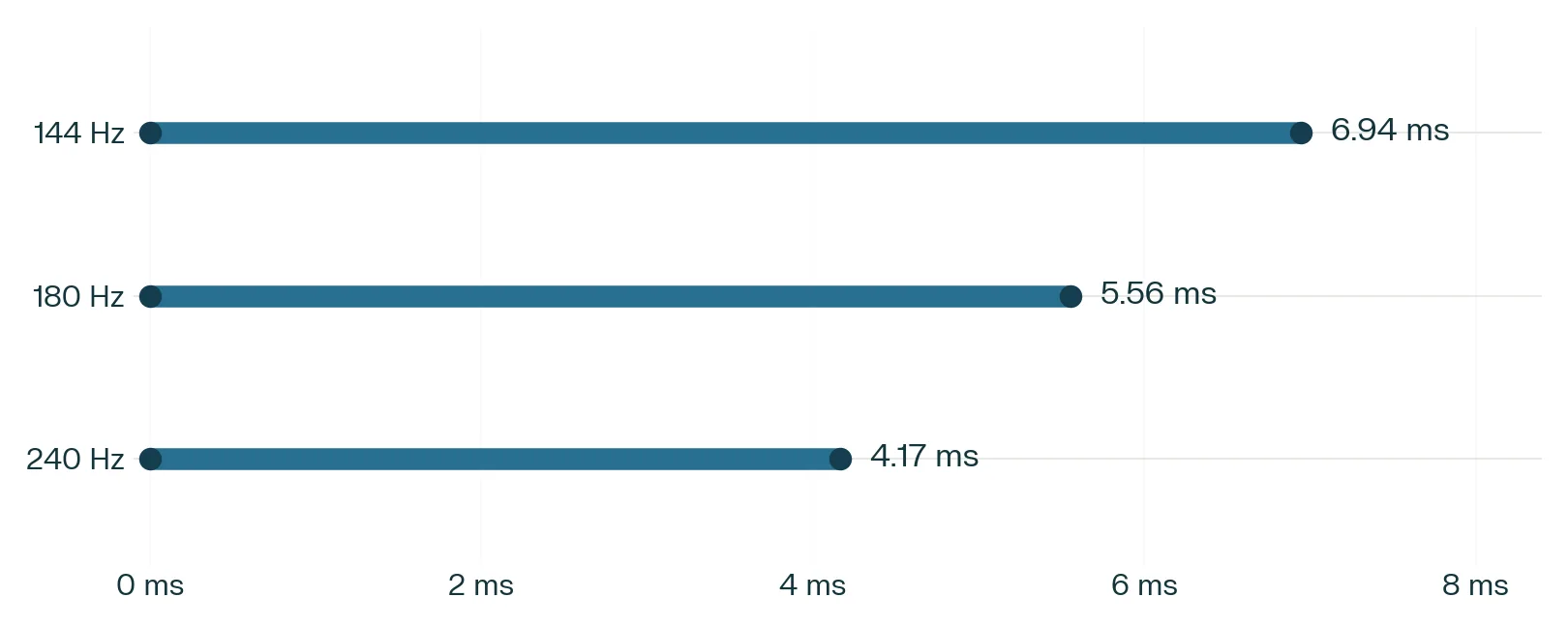
Each segment represents one calculated fixed-refresh interval, not a panel measurement. A shorter segment means more closely spaced opportunities to update the display, not proof that a particular monitor has clearer motion.
Choose for the games you actually play
Fast competitive games
If tracking opponents and responsiveness matter more than visual richness, investigate 240 Hz. It is easier to justify when your games and settings often deliver high, consistent frame rates and independent testing confirms good motion handling. Accepting a lower resolution or reduced detail may be part of that choice, without guaranteeing that your PC reaches the desired frame rate. If the premium consumes money that would improve the system more usefully elsewhere, a good 144 or 180 Hz monitor remains defensible.
Story driven and visually rich games
If scenery and image quality come first, start with resolution, contrast and readability at your normal viewing distance. A well-chosen 144 or 180 Hz monitor may preserve budget for those qualities. A 240 Hz display is not useless for these games, but paying more for it is less compelling if you sacrifice what matters most to you or the PC rarely supplies fresh frames at that rate.
Mixed use
A 180 Hz monitor is an intermediate option, not an automatic recommendation. Compare its actual price, behaviour and features with the other two classes. A good 144 Hz model can be preferable to a poorly tuned 180 Hz model; a well-documented 240 Hz monitor can make sense if its premium does not undermine your other priorities. Refresh rate alone does not rank overall quality.
Observe your PC before spending more
- Choose your usual games, intended resolution and settings you would genuinely accept. A result at a different resolution is not enough.
- Replay a representative scene, including a demanding section, while watching FPS and, if available, a frame-time graph. Repeat the observation: one easy scene does not represent the whole game.
- Record fluctuations and pauses, not just the average. Frame-time spikes indicate uneven frame delivery; they do not by themselves prove that the GPU is responsible.
- Then compare the spending options: a better panel, a faster monitor or a targeted PC upgrade. Choose the last option only after identifying the limitation.
Raising resolution can increase graphics workload; the actual effect depends on the game and the system's limiting factor. A faster monitor does not create missing game frames or repair pauses in their production. You do not need FPS to remain exactly equal to Hz: synchronisation and operating range matter too.
Check clarity rather than a 1 ms promise
Look for independent testing of the exact model covering multiple pixel transitions, overdrive settings and behaviour at different refresh rates. Overdrive speeds up transitions but can push pixels past their target colour, creating overshoot that appears as inverse ghosting or halos. The fastest setting is therefore not always the cleanest.
Testing only at maximum refresh is insufficient if you often play lower down with variable refresh rate. Also examine pursuit-camera photos made with a documented method, and do not treat figures from different test protocols as directly equivalent. Panel technology and Hz do not replace this check. This article claims neither exact-model performance nor BGM laboratory results.
Confirm the complete display mode and VRR
Before buying, obtain the exact model's manual and check:
- Maximum resolution and refresh rate on each input, including the conditions for any overclocked mode.
- The actual GPU or laptop output, cable, and any adapter or dock. An HDMI or DisplayPort label alone does not establish support for the complete mode.
- Colour-depth and HDR conditions at the desired refresh rate, plus any restrictions listed in the manual.
- FreeSync, G-SYNC or Adaptive-Sync compatibility for your precise combination, the supported input and its VRR range.
VRR adjusts refresh timing to incoming frames within its operating range to reduce tearing. Below its lower limit, low framerate compensation, or LFC, repeats frames when available and active to keep refresh within range; it does not invent fresh game frames. Above the upper limit, behaviour depends on synchronisation and settings. No logo guarantees every mode on every port.
After connecting, select the correct resolution and intended refresh rate in the operating system, then enable and verify VRR in the monitor and driver settings. Fluctuating FPS does not automatically make a monitor incompatible.
Turn your budget into a decision
Write down five things: your priority games, target resolution, observed PC behaviour, each candidate's total price including the necessary cable, and any unverified points. This record is more useful than a universal FPS rule.
Choose 144 Hz when it preserves a better overall display; 180 Hz when its actual balance of cost and qualities is stronger; and 240 Hz when competitive priorities, PC capability and model testing jointly justify the expense. If you already own a good 144 Hz monitor, weigh the expected benefit against what replacing it would cost you elsewhere. Uncertainty about pixel transitions or the input you will use is a question to resolve before purchase, not a quality to assume.