Software & Operating Systems By M.Akram7 min read
Can’t run Windows 11? Decide whether to keep your PC
In this article
- What changed for Windows 10
- Start with a check, not a purchase
- When a setting might change the result
- When the PC passes but no upgrade appears
- Consumer ESU needs a current check
- Business ESU is a different programme
- If the hardware remains incompatible
- Keep the hardware with another operating system
- Replace the PC only when it meets a real need
- Your next step before spending money
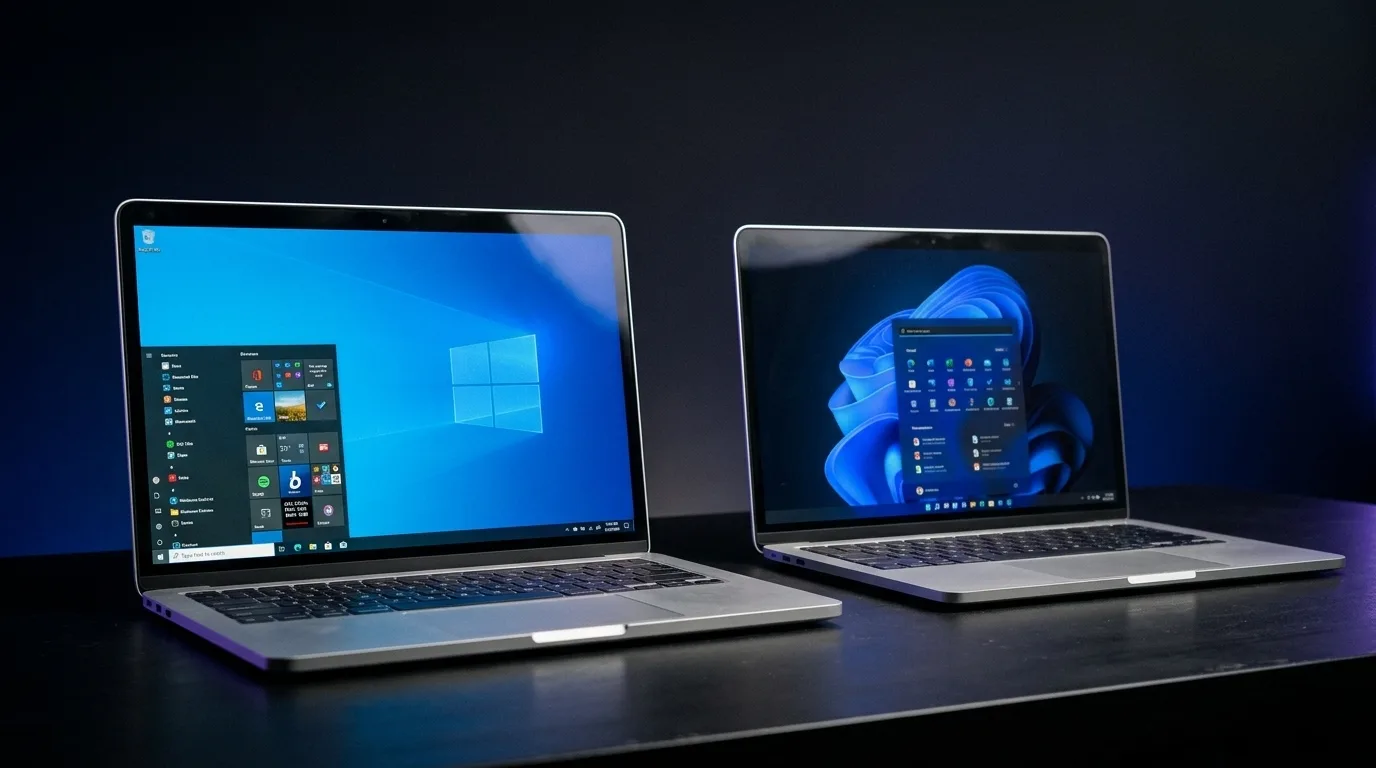
No, a refusal to upgrade to Windows 11 does not automatically mean you need a replacement PC. Find the reason first: a disabled setting calls for a different decision from an unsupported processor. Then choose between an official upgrade, temporary Windows 10 use with security updates you can actually obtain, another system that meets your needs, or a justified replacement. This practical route reflects information checked on 7 November 2026.
What changed for Windows 10
Standard support for Windows 10 Home and Pro ended on 14 October 2025. Your computer does not stop working: Windows still starts, and applications may continue to run. However, without an applicable support arrangement, the operating system no longer receives its ordinary security fixes. Microsoft explains the distinction on its Windows end-of-support page.
This means neither instant infection nor unchanged security. An updated browser or antivirus cannot replace Windows security fixes. Do not treat Windows 10 without coverage as a lasting solution for sensitive accounts and documents. This article concerns consumer editions, not specialist editions that may have different support schedules.
Start with a check, not a purchase
- Open Settings > Update & Security > Windows Update. Note the message and install the updates offered for your installation.
- Run Microsoft’s official PC Health Check app and select the Windows 11 compatibility check. Find the tool and criteria on the Windows 11 requirements page.
- Expand the results and keep every reason for rejection. A missing Windows Update offer alone does not establish hardware incompatibility.
The main minimums include a compatible 64-bit processor running at 1 GHz or faster with two or more cores, 4 GB of memory, and a storage device of at least 64 GB. You also need UEFI firmware capable of Secure Boot and TPM 2.0. TPM is a security function that helps protect encryption keys, among other tasks. Secure Boot checks that software loaded during startup is trusted.
Clock speed and core count are not enough: the processor model must be supported. Other requirements include DirectX 12 graphics with a WDDM 2.0 driver and a display larger than 9 inches, at 720p, with 8 bits per colour channel. PC Health Check does not check the graphics card or display, so consult the manufacturer’s specifications too. These minimums do not promise comfortable performance in your applications. Windows 11 Home and Pro for personal use require internet access and a Microsoft account during initial setup.
When a setting might change the result
If the report flags TPM, open tpm.msc through Windows search to read its status and version. An undetected TPM may be disabled; the message alone does not prove the hardware lacks it. Read Microsoft’s TPM 2.0 guidance, then the manual for your exact model. The function may be called Intel PTT or AMD fTPM.
For startup information, open System Information using msinfo32 and note BIOS Mode and Secure Boot State. Reading these fields changes nothing. They help prepare a check with the manufacturer, not justify changing options at random.
A documented setting or an officially supported firmware update for the model can sometimes remove a blocker. This is not guaranteed. Run the check again after any supported change. If the processor remains unsupported, enabling TPM or adding an SSD will not fix that reason. Before buying memory or a TPM module, confirm both the part’s compatibility and every other requirement.
When the PC passes but no upgrade appears
After a successful check, return to Windows Update once updates and a restart are complete. Microsoft recommends this route in its Windows 11 installation guidance. A missing offer can also reflect a wait or a compatibility hold: do not force an installation to bypass a warning. Check the affected drivers and applications with their publishers.
Consumer ESU needs a current check
ESU stands for Extended Security Updates. It supplies security fixes rated critical and important, not new features or general technical support. It is a transition arrangement, not a system refurbishment.
There is an important discrepancy in the material checked: Microsoft’s current consumer ESU page advertises enrolment and coverage until 12 October 2027, with existing enrolments continuing automatically. A separate official support page still gives 13 October 2026, which has already passed. The documents consulted are therefore not fully aligned. It would be misleading either to declare the programme permanently closed based only on the older date or to guarantee an extension on every device.
The page advertising 2027 requires Windows 10 version 22H2 Home, Pro, Pro Education or Pro for Workstations, the latest updates and preparation package KB5126256. It also requires an administrator Microsoft account that is not a child account. The licence is linked to the enrolling account. Installing the preparation package alone does not enrol the PC.
That page lists three routes: syncing PC settings at no additional charge, redeeming 1,000 Microsoft Rewards points, or making a one-time purchase at a reference price of US$30 or a local currency equivalent, plus applicable tax. These are not confirmed offers for Algeria. Microsoft states that options and timing vary by region; the European Economic Area’s particular conditions do not automatically apply there.
In practice, open Settings > Update & Security > Windows Update and inspect the ESU status or enrolment link shown. Country-specific official evidence confirming enrolment, points redemption and payment availability in Algeria could not be established. Before paying, ask Microsoft to confirm regional eligibility and the coverage end date for your device, especially if the screen conflicts with the page advertising 2027. Do not artificially change your region to obtain an offer.
Business ESU is a different programme
Ask your IT department about a work-managed PC. Consumer ESU excludes commercial scenarios, including devices joined to a domain or Microsoft Entra and devices managed through MDM. A device merely registered with Microsoft Entra is not the same as an Entra-joined device.
Microsoft’s commercial ESU schedule provides up to three years, ending on 10 October 2028 for eligible editions and uses. That schedule and its licences do not automatically give home users three years. Owning Windows 10 Pro does not make the programmes interchangeable.
If the hardware remains incompatible
Keep the hardware with another operating system
A maintained Linux distribution may extend the hardware’s useful life if it meets your needs. First list essential applications, file formats, games and peripherals. Check with publishers for a Linux version or an acceptable alternative, multiplayer and anti-cheat compatibility, and drivers for your printer, Wi-Fi and other accessories. A browser-based application may ease the move without replacing every feature of its Windows version.
If the distribution supports it, try its USB environment without starting installation. Test the functions you actually need; successful startup does not guarantee every use case. Back up before installing: the wrong partitioning choice can erase data. This route suits validated needs, not every user by default.
Replace the PC only when it meets a real need
A compatible new or refurbished computer makes sense if your applications require Windows and no supported transition is realistic on the current PC. Verify the exact model, official eligibility, drivers and your applications before buying. Compare the full cost of any feasible hardware changes with replacement too; avoid buying a part that fixes only one blocker.
Installing Windows 11 by bypassing its requirements is not an officially supported upgrade. Microsoft warns about compatibility problems and does not guarantee updates, including security updates, in its guidance on unsupported devices. It is therefore not our default recommendation.
Your next step before spending money
Consider a hypothetical example: two people see the same upgrade rejection. If the first person’s report identifies only a disabled TPM and the manufacturer confirms a supported way to enable it, the next step is to secure the data, follow that procedure and rerun the check. If the second person’s report identifies an unsupported processor, the same change will not solve the problem: they should compare actually confirmed ESU coverage, another system tested against their needs, and replacement.
Before spending, gather three things: the full compatibility report, a list of essential applications and accessories, and a verified backup. If considering ESU, add confirmation of enrolment and the coverage end date on your device. These details let you choose an appropriate action instead of buying another computer solely because an upgrade was refused.